Linear Gauge Tool
 A Linear Gauge Tool object has a pointer that shows a value within a given range in a multi-section gauge. The range is defined by the PositionMin and PositionMax properties of the object. The pointer position is set by the Position property. In Edit mode, you can assign a default value to this property. If the object is associated with a point, the default value is replaced in Run mode by the actual value of the point.
|
Linear Gauge Tool Examples |
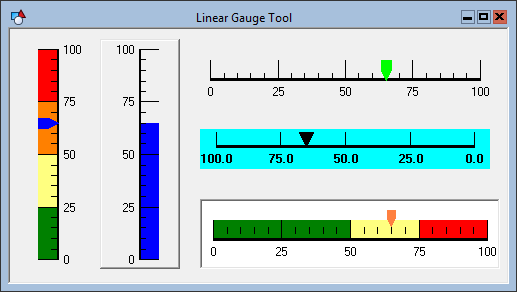
To associate the object with a point use the point identifier properties to form a fully qualified CygNet tag string. The point identifier properties are [1:SiteService], [2:Point ID], [3:Long Point ID], [4:Facility ID], and [5:UDC]. If the object is on a templated screen, only use the [5:UDC] property.
The style of Pointer(0) is defined by the pointer properties listed on the ActiveX page on the Property Sheet (PointerColor, PointerOffset, PointerSize, and PointerStyle). This is the default pointer. It cannot be deleted. You can add additional pointers in the OCXProperties dialog box (Design > Pointers); however, these pointers cannot be configured to show real-time data. They can be configured with a static value, but only Pointer(0) will show data from a CygNet point.
The gauge has built-in pointers to show the minimum and maximum values recorded by the gauge since the screen has been in Run mode. These pointers are enabled using the ShowMinPointer and ShowMaxPointer properties. The CurrentMin and CurrentMax properties specify the values for the pointers. Although you can specify a default value for each pointer in Edit mode, the value will be reset in Run mode when the Position value changes. CurrentMax records the highest Position; CurrentMin records the lowest.
The gauge can have up to 5 sections and any number of pointers. SectionCount defines the number of sections, and the SectionColor properties define the color of each section. The SectionEnd properties define the ending value for each section.
The orientation of the object can be vertical or horizontal. If you change the orientation, you will also have to adjust the object’s boundary to match. The scale can go left-to-right, right-to-left, top-to-bottom, or bottom-to-top. The scale is reversed using the ReverseScale property. The number, length, precision, and color of the tick marks can be configured.
The [AlarmElement] property can be set to show the point state color in the object’s Background Color, the Pointer Color, or not at all (None). When set to None, the color specified for each component is shown. If set to one of the other options, the component color is replaced with the point state color.
The [UseCustomStateColors] property enables the object to use its own custom point state colors. If set to 1 - Yes, the colors used are those defined by the object’s [CustomStateColors] property. If set to 0 - No, the colors are those defined by the TheView’s [CustomStateColors] property.
More:
 Linear Gauge Tool - Properties, Events, and Methods
Linear Gauge Tool - ActiveX Properties
Linear Gauge Tool - Dynamic Configuration of ActiveX Properties

